EMBERBY MINIPAX
Thermal signature simulation V0.2.4 / DEVELOPMENT BUILD

Explore
thermal imaging.

Explore how heat, materials and environmental conditions shape what a thermal camera sees. Experiment with camouflage, cooling and different viewpoints in an interactive 3D simulation.

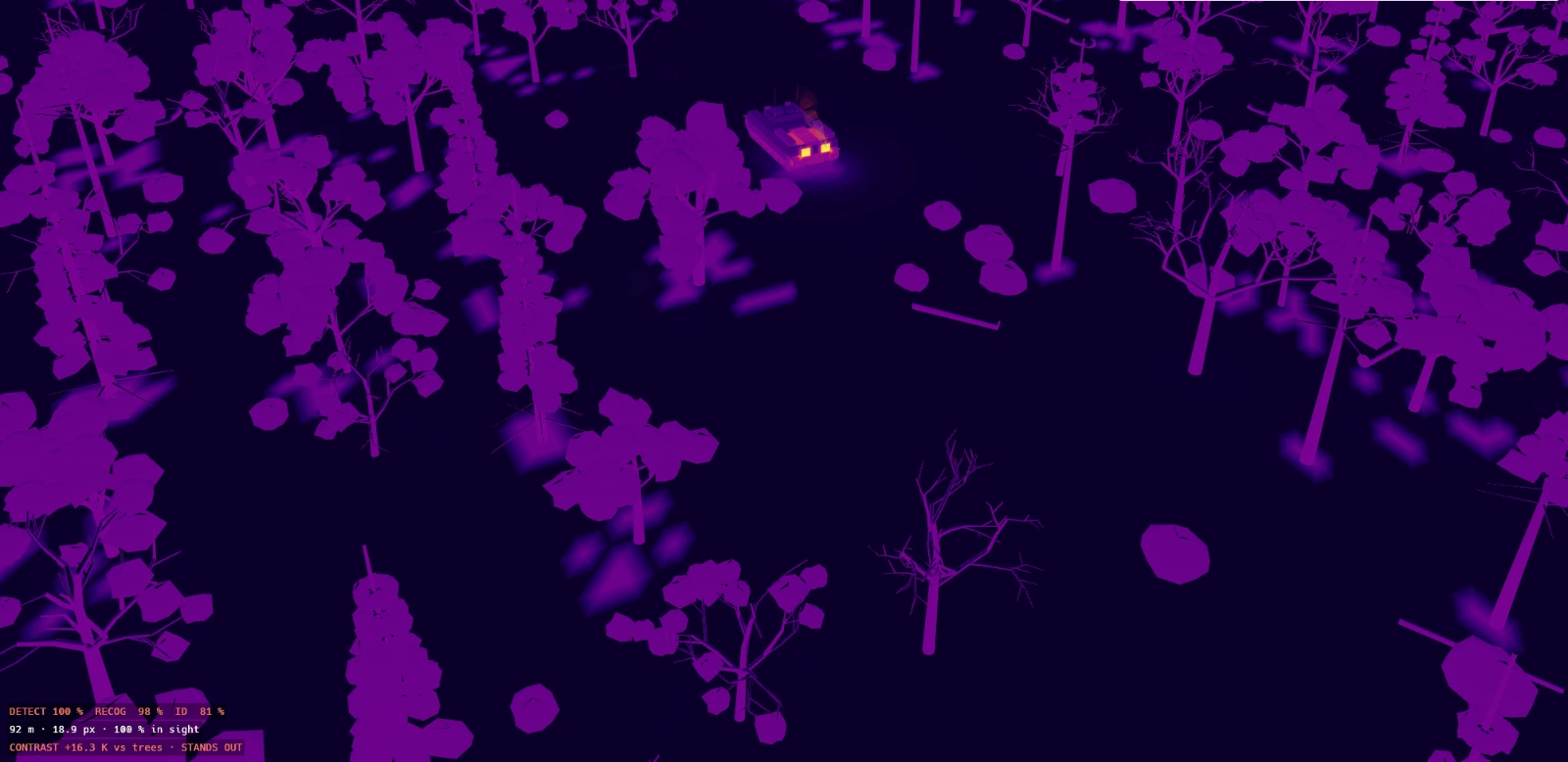
EMBER / THERMAL VIEWSCENE 02 — WINTER FOREST
Actual EMBER thermal simulation screenshot: a tracked engineering vehicle among trees in a snow-covered forest, shown in purple and orange thermal colours
LWIR · UNCOOLED 640
APPLICATION CAPTURE / 0.2.3
TRACKED ENGINEERING VEHICLE
THERMAL SIGNATURE / EXPLORATION VIEW
LOW HIGH
01 / VEHICLE AND ENVIRONMENT IN THE THERMAL SPECTRUM
V0.2.3 SCREENSHOT · EIGHT-TAB INTERFACE INTRODUCED IN V0.2.4DESKTOP APPLICATION / WINDOWS 10 & 11
01 VEHICLE HEAT MODEL02 MWIR / LWIR IMAGING03 DYNAMIC ENVIRONMENTS04 COMPARISON & REPORTS
01 / Functions in version 0.2.4

Eight tabs.
One thermal picture.

From setting the scene to exporting a comparison: the main functions, organised just like the application. Full controls and explanations are in the PDF guide.

01

Scene

Set the surroundings.

Terrain & seasonsChoose from ten scenes, from forests and fields to streets, ruins and an airfield.

Weather & timeAdjust sun, rain, fog, snow and wind, or use live weather and evolving weather scenarios.

Thermal historyWarm up the scene so ground and buildings retain heat from earlier conditions.

02

Vehicle

Follow the heat.

Engine & componentsSet engine load or shutdown time and inspect individual heat sources.

Driving & routesDrive manually or draw a route. Movement changes running-gear and ground temperatures.

Record & replayCapture a drive and replay it to explore how the signature evolves.

03

Cover

Explore concealment.

Coverings & positionCompare nets, blankets, canvas, natural materials, snow and earth, or use terrain cover.

Layers & mountingVary insulation, air gaps, hull contact and which sides are covered.

Low-emissivity paintApply paint to selected vehicle zones and inspect its effect on the thermal image.

04

Cooling

Track where heat goes.

Fans & outletsVary airflow and outlet placement; inspect the heat released into the surroundings.

Air & water coolingExplore heat exchangers, buried pipes, under-hull airflow and water spray.

Power & enduranceCompare engine and battery power, including fuel, water and battery run time.

05

Decoys

Explore the wider scene.

Heated replicaPlace a vehicle decoy and change its heating pattern, power and position.

Background heatShow or hide people, animals, a generator and a campfire.

Track marksObserve the thermal traces left by driving and turning, and how they fade.

06

Observer

Change the viewpoint.

Thermal camerasCompare MWIR and LWIR profiles, resolution, lenses, sensitivity, noise and blur.

Ground & aerial viewsObserve from a ground post, drone or flying drone/helicopter with several flight patterns.

MissionsTry eleven short tasks that score exposure to an observer and time to reach the goal.

07

Analysis

Measure and compare.

Meters & detection mapRead temperatures and estimated detection, recognition and identification; sweep viewing directions to map visibility.

Timeline & heat tracesTrack temperatures over time and estimate how long the vehicle and ground traces remain visible.

Presets & reportsCompare saved configurations and export screenshots, CSV data and a PDF report.

08

Settings

Choose how you explore.

Views & controlsSwitch between seven camera modes and thermal, paint or clay displays.

Thermal displaySelect five palettes, set the temperature scale and adjust camera emissivity and air correction.

Language & audioUse the English or Polish interface, with optional built-in music loops.
THE COMPLETE REFERENCE

Every setting, control and model limitation.

Open the full guide ↗
02 / An exploratory workflow

Set up. Observe.
Compare.

A repeatable way to explore thermal behaviour and document what changes between configurations.

01 / CONFIGURE

Build your scenario.

Choose a scene, weather conditions, vehicle state and thermal imager. Set the viewpoint or a moving observer.

02 / INVESTIGATE

Watch the signature evolve.

Drive a route or advance the simulation timeline. Inspect thermal contrast as the vehicle and its surroundings change.

03 / DOCUMENT

Compare configurations.

Use saved camouflage presets for before-and-after comparisons. Export images, CSV data and a PDF report from the application.

03 / Project information

A closer look
at EMBER.

An experimental Windows application by MINIPAX for exploring vehicle thermal signatures, concealment and thermal observation. Version 0.2.4 brings the controls together in eight dedicated tabs.

MODEL STATUS / Temperatures and detection probabilities are engineering estimates for visualisation, not measured field data. The PDF guide describes the model limitations and known issues.
Full user guideVERSION 0.2.4 · ENGLISH · PDF↗Explore the interfaceV0.2.4 · ANALYSIS TAB · POLISH INTERFACE↗About MINIPAXDEFENCE TECHNOLOGY FOR CONTESTED ENVIRONMENTS↗

Windows desktop application · English / Polish interface
This website presents the application; the simulation runs on desktop.

EMBER / APPLICATION CAPTURE · V0.2.4
EMBER 0.2.4 interface showing the tracked vehicle, thermal camera inset, eight tabs and Analysis controls in Polish

Version 0.2.4 — Analysis tab, with the interface shown in Polish. Extracted from the supplied user guide.